



CROSSBAR HELP
HELPING WITH THE TRANSITION TO CROSSBAR
CROSSBAR HELP
CROSSBAR HELP & RESOURCES
This page will help you with, creating your account, adding participants, reading both family & public calendars, and how to download the Crossbar application to your mobile devices.
Click on the buttons below to bring you to that section of this help page
FHA CROSSBAR ACCOUNT SETUP
PLEASE FOLLOW THE BELOW USING THE NEW FHA CROSSBAR WEBSITE AND NOT THE APP.
***PLEASE READ ENTIRE PAGE***
If you need additional help, please checkout the Crossbar Help Section below
ALREADY HAVE AN ACCOUNT?
If you already have a Crossbar account from another program, you can select login at the upper left of the website if using a desktop/laptop, and if using a mobile device, hit the 3 lines in the upper corner, (hamburger menu) then login. When you register for an FHA program you will be automatically added into the FHA Club and receive FHA communications.
CREATING NEW FHA ACCOUNT
- Account sign up needs to be done from the FHA website and not from the main Crossbar website.
- Click "Sign Up" that will show at the top left of the site over your organization's logo.
- Enter the email address and password you'd like to set up for your account.
- A verification email will be sent to the email you enter to activate the Crossbar account.


Adding Your Participant
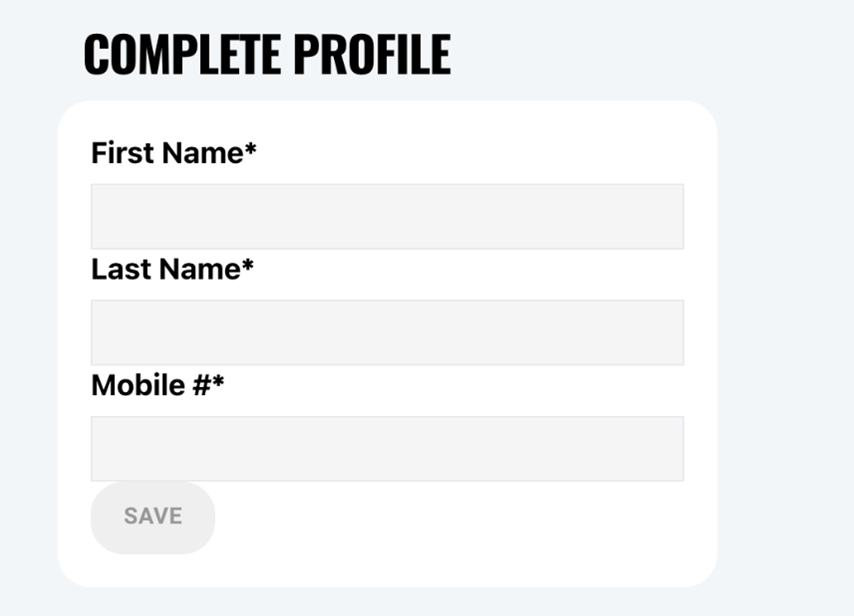
- Once you have verified the account, you'll be able to enter your name and phone number to complete your account set up
- After you complete your account setup, you'll be prompted to add a Participant/Player to your account:
A Participant can be either your player, coach, staff, or for those still engaged in the program, you will create the participant as you. This will allow you to join the FHA club and continue to get all member communications, and stay current with FHA.
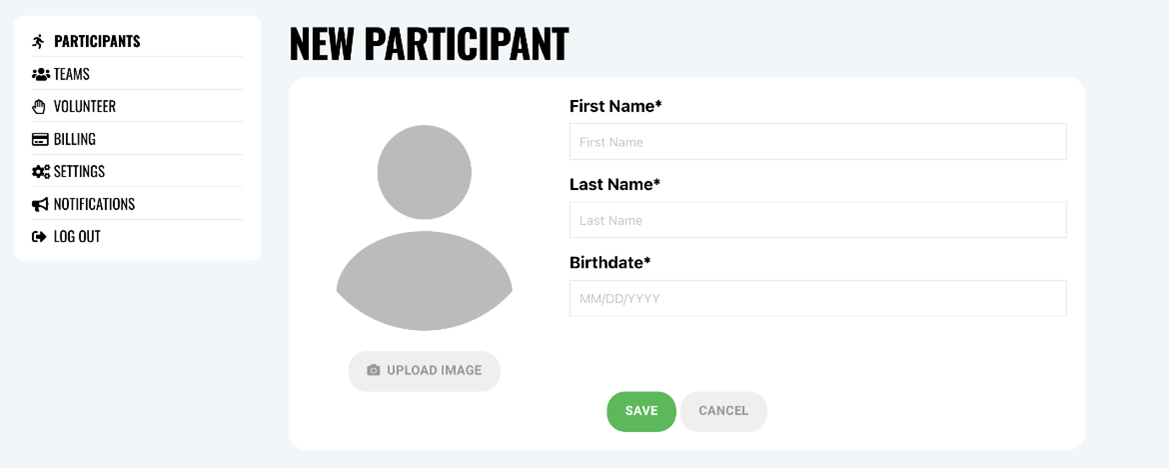
- Primary account for your player. Both parents/guardians can be added, and each parent can have their own Crossbar account. However, it is the primary parent that can only do the registration for their player. The primary parent is indicated by a star next to their email address under player profile. It is highly recommended that all players be managed under one parent account, then just add the other parents email address to the players profile. If each parent registers a player, then you will have to add each others email under that players profile. This gets very messy and can be confusing, so recommend for 1 parent to register each player, and then add the email address of the other parent, or grandparents, etc.
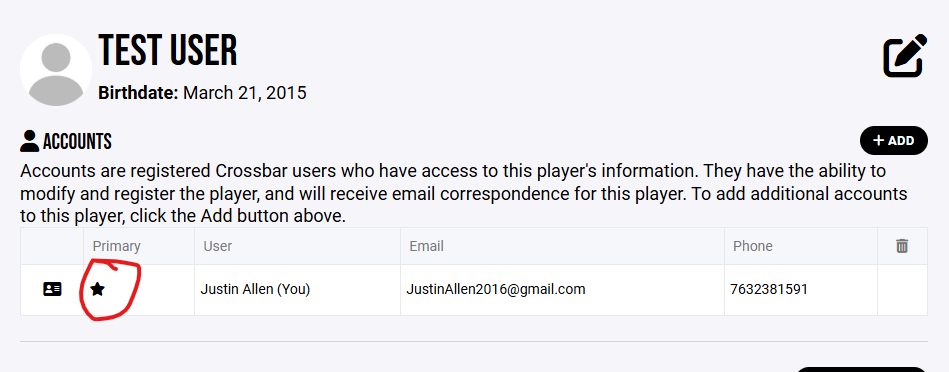
Adding additional Participant.
- Log into your Account and choose "Account"
- On the Participants tab of your Account menu, select "Add Participant"
- Complete Profile (name, birthdate)
***IMPORTANT*** After Adding Your Participant
- Click on your Participant profile
- Scroll down to Club
- Make sure your participant joins the Faribault Hockey Association Club.
- Joining the FHA Club will show you as a member for FHA and you will be included in all association communications.
- This will happen automatically when you register for the season, but doing this prior to season registration will guarantee you receive all FHA Member communications.
Explanation:
When you sign up, it is just creating an account in general for Crossbar. When on the association page, you will create your participants that will then belong to the association club. Participants can be either a player, coach, staff, or for those still engaged in the program, you will create the participant as you.
You will hit that join button on the club section to receive communications and show up as a FHA member. This is manual so nobody is forced to have communications sent, and you can dis-join the club at any time. However, by dis-joining, it will remove you as a member of FHA.


Your Account Menu
When logged into your account on the FHA website, you'll see the following options when you choose "Account."
Participants: Allows you to add participants (Players, Coaches, Staff, or FHA Member without a player) that will be associated with the account, as well as edit details for each participants. Participants will belong to the account they are created under. You can add others to manage the participant under the profile settings.
Teams: This tab shows your assigned teams. Clicking on the team will take you to the team page.
Volunteer: Here you can sign up for volunteer events your organization has added, if they exist.
Billing: The Billing section of your Account allows you to view your balances/payments and update your payment methods on file.
Settings: Here you can update your account name, phone number, email address and password.
Notifications: Sets email notifications for games and practices. Ensure you have these selected to receive all communications from your organization.
READING THE CALENDARS
Good news everyone ! No more tags, or having to deal with custom tags to view the calendar.
The new Crossbar family, and public calendars will provide you with ease of use to view your players practices, games, tournaments, and more. It will also provide our community with a public view so they can look at who is on the ice or what tournament is coming up. However, Crossbar does have some small limitations and this explanation will help you through these small limitations on the best way to view the calendars and find certain events.
FAMILY CALENDAR
The Crossbar family calendar will be your primary calendar you will review for your players schedule and all association events. This will have all the detailed information in it to make sure you are at the right spot and at the right time! This calendar can be found both in the app and on the website under family calendar. When you player is added to a team, or a group, you will then see everything scheduled for that team or group. Since this calendar is specifically for your player, you will want to view the Club or Facility calendar to see what is currently going on or what is upcoming at the Faribault Ice Arena.
TEAM CALENDAR
The team calendar is specific for each team, and will show you all the practices, games, and event for that specific team. This can be accessed through the website by going to Teams, selecting the team you want to view, then select schedule on the left hand side. Viewing on the website is a public view of that specific team events.
CLUB CALANDER VIEW
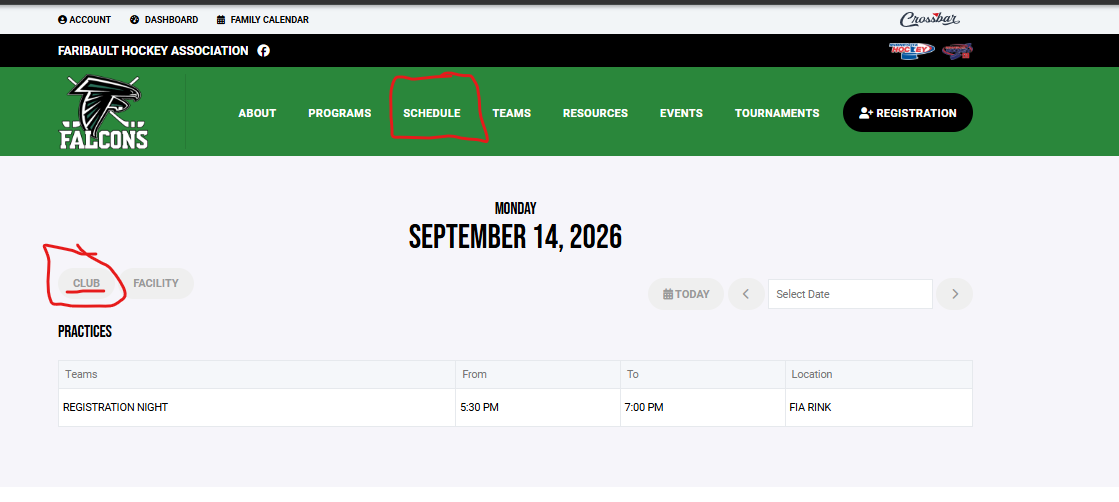
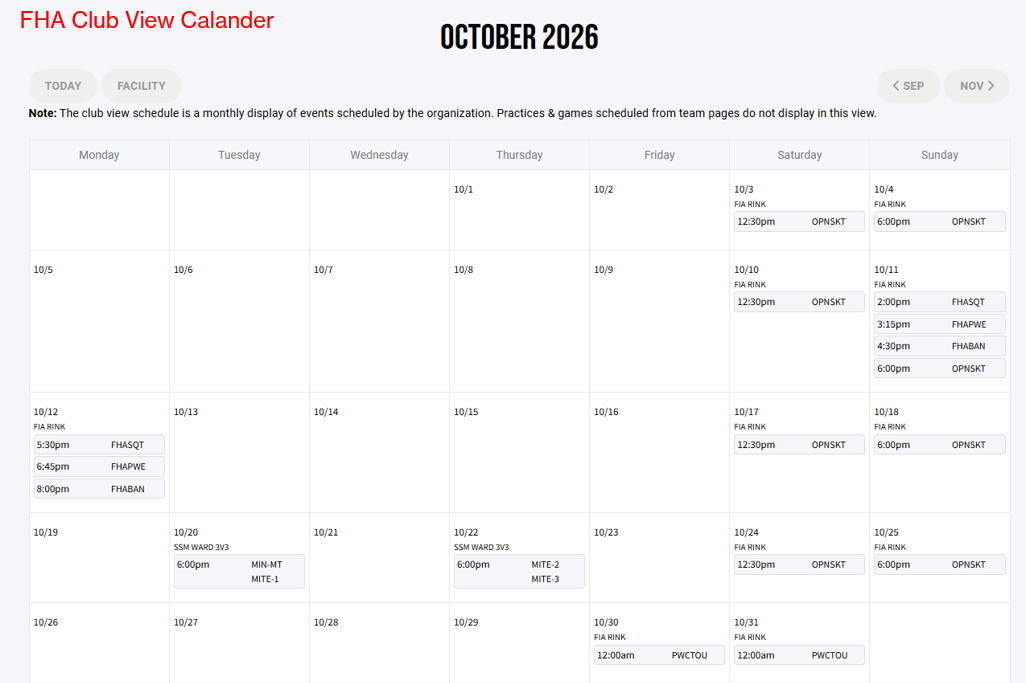
The club view is our FHA public community calendar that will show everything for the entire month. Because of maximum character limitations within Crossbar, this view has all events in an abbreviated format. We have generated a key to give you additional information on the event name. Click the link below to view the key. You can also pull up the Facility calendar for that single day to provide more details.
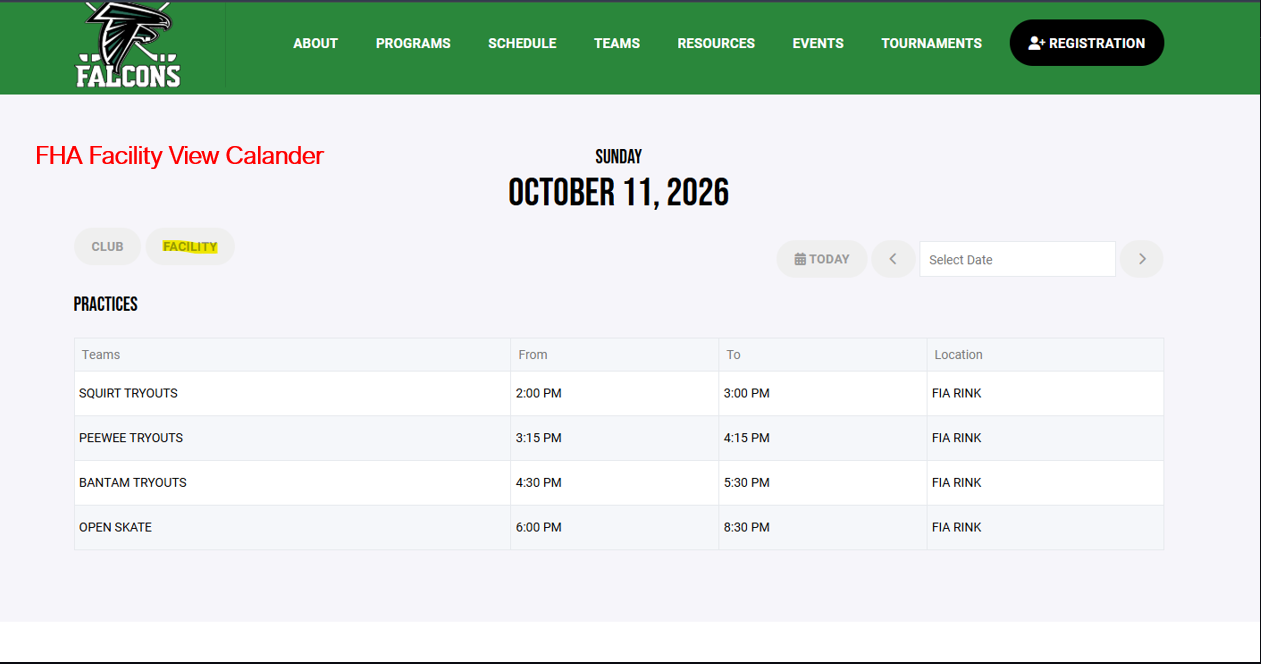
FACILITY CALANDER VIEW
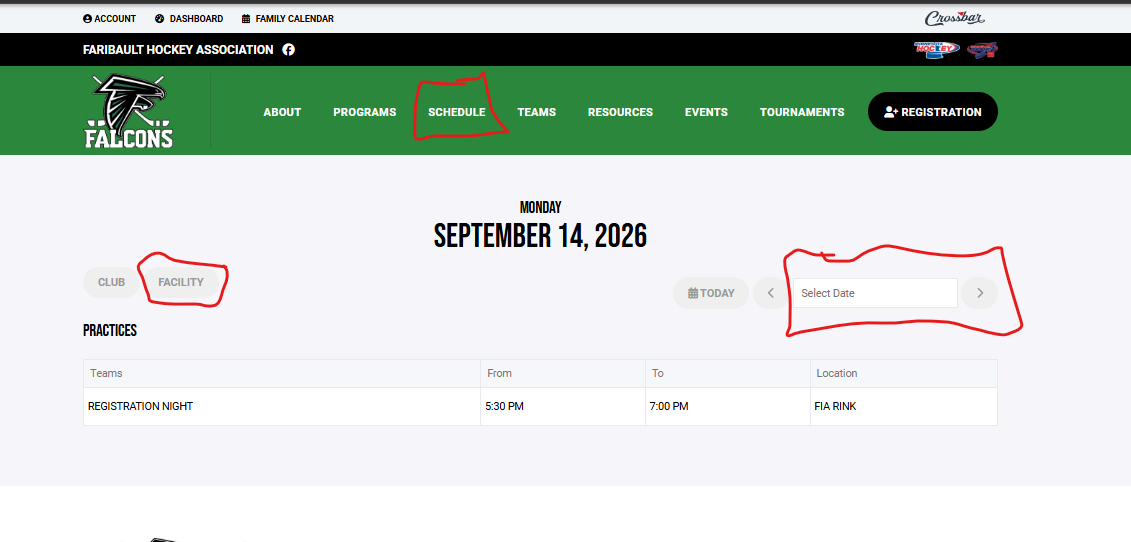
This calendar view is for a single day, and will provide you additional details to the event. See below for examples of viewing the Club and Facility calendars as well as the key legend
*** NOTE*** When you click on the schedule from the home page, you must then select FACILITY or CLUB to enable your views. By clicking on the schedule from the home page that will just show you everything for todays date only.
FAMILY CALENDAR VIEW
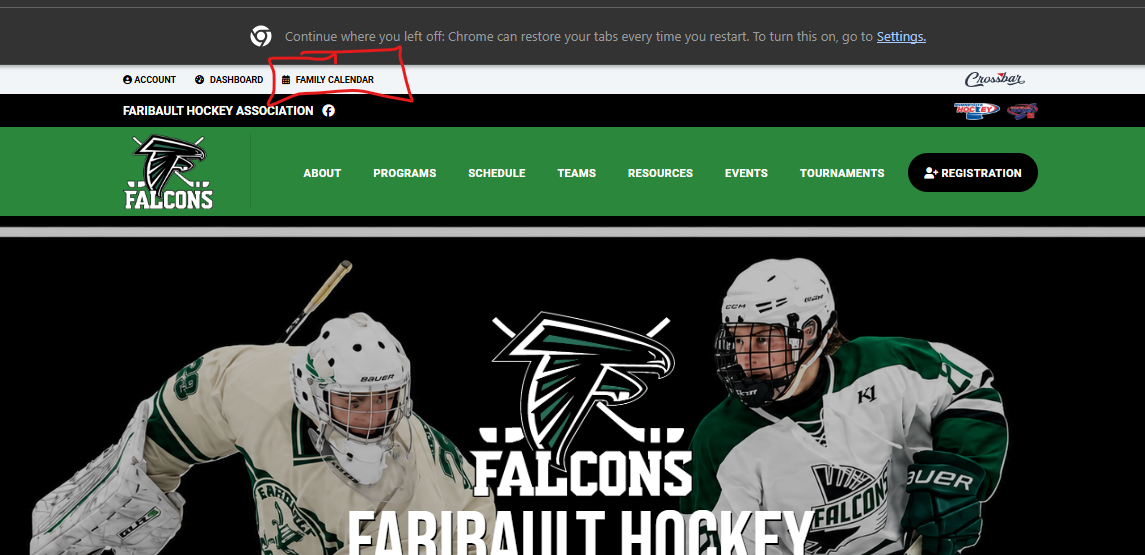
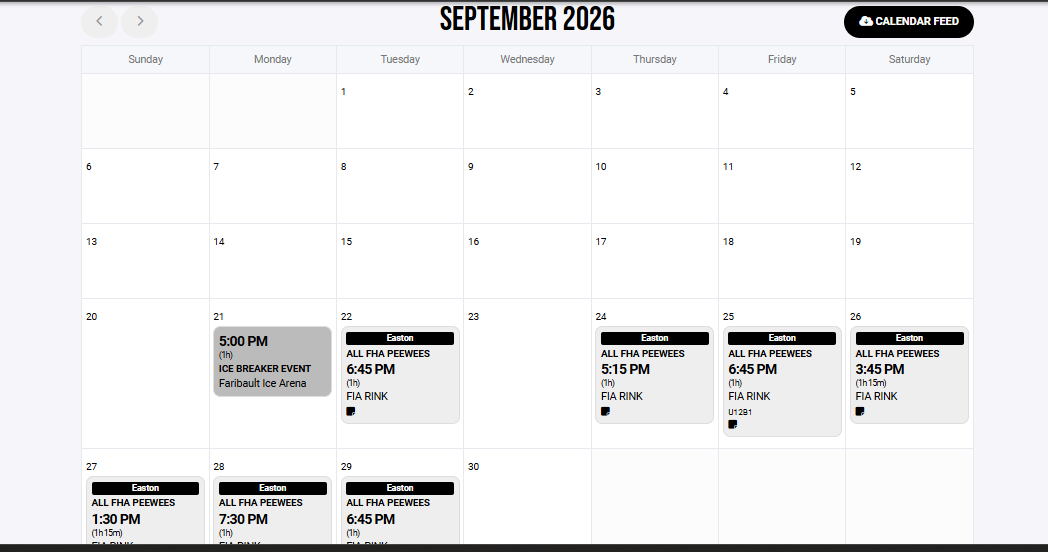
FACILITY CALENDAR
CLUB CALENDAR VIEW
FAQ's
Q: I do not see the schedule for my player under my family calendar.
A: If you do not see your players schedule, then it is highly likely your player has not been added into the team or group. You can confirm this by accessing your Account, and then selecting Teams. If you do not see any teams then you will not see any calendar events for your player. If this is your case please reach out to a staff member to help fix.
Q: Can I add other family members so they are able to view the family calendar?
A: Yes, FROM THE WEBSITE ( Not App) you can add other family members under the player profile. Add their email address, and then they will get an email inviting them. Once added they can use the app or website to view the players family calendar. See the Crossbar Help section for further details on adding additional members to your players profile.
Download Mobile App
After you have completed your account setup and creating your Participants, you can download the Crossbar App from your vendors app store.
NOTE:
Account creation must be done from the website and not from the mobile app.